When a device or IP address you do not recognise turns up in your Binance login history, open the account yourself — from the official app you installed or a bookmark you saved for the website — go to Security, and hold each line up against what you were doing at that time: the clock time, the network, the device. A city you have never been to or an unfamiliar device name is not, on its own, proof that someone else got in. A login you did not make, a withdrawal you did not start, or a security setting you did not change is different: disable the account as Binance's help centre describes, then contact support from inside the app or website.
If you have already seen activity like that, skip to where the Disable Account button is. Gathering every detail can wait until the account is locked.
Where Binance shows your login history and device list
There are two records, and they answer different questions. The account activity log, in the words of the Binance Academy security guide, shows “the IP addresses and timestamps of recent logins”. Device Management lists the devices “currently authorized to access your account”. Binance's blog post on compromised accounts puts both under Security: you check your last login under [Account Activity], and you delete unused devices under [Devices and Activities] - [Device Management].
Use the activity log to check login times and IP addresses, and Device Management to check which devices are authorised. These are different records, so do not use the number of activity entries as a count of devices. To investigate a suspicious login, look at both.
If your own Security page does not show a menu with those names, search for “account activity” or “device management” in the help centre inside the app or on the website, or tell support which menu you cannot find. Do not follow a login link someone else sends you to “check” it.
Checking the time, the IP address and the device name
Work line by line, and for each field find something on paper or on your phone that backs it up, rather than going on memory.
- Time: first find out which time zone the column is shown in, and convert it to your local time. Then look for anything of yours from that hour — a login alert email from Binance, a verification code text, an order or transfer you placed. Once you have that anchor, compare it with the rest of the same row.
- IP address: a city shown next to an IP is an estimate based on the address range, not a location fix. On mobile data, an office network, hotel Wi-Fi or a VPN, the city can be a long way from where you were sitting, and the same phone gets a different IP when it switches networks. A wrong city is a reason to remember which network you were on at that time, not yet a reason to panic.
- Device name: read the operating system, browser or model the page actually lists, not just a nickname. Then count every device that has ever opened this account, at home and at work — an old phone you replaced, a tablet, a browser you used once can each take a line of their own.
Say the row in front of you reads “Windows · Chrome”, and you normally use only the phone app. Before deciding it was someone else, think about whether you signed in on the website from a work computer or a family member's laptop to look something up. If you can place it, carry on checking that session's time and network. If you cannot, and the time falls when you were plainly asleep, hand that row to Binance support to investigate.
While you are in there, three other places say more about whether anything was touched than the login history does: your withdrawal history, for withdrawals you never started; your withdrawal address whitelist, for addresses you never added; and the API management page, for keys you never created.
What to write down before you contact support
As long as it does not delay protecting the account, take a screenshot of the row that does not match, or copy out its time, IP and device name. The Binance blog post asks you to “carefully document any actions or modifications that you don't recognize”, because it helps you understand how far the breach went and helps any investigation afterwards. Keep those notes somewhere only you control, and send them only through Binance's own support channels — not in a public comment or a group chat.
The same post also says what to give support: the time you first noticed unauthorised activity, and any evidence you have, such as suspicious emails, login attempts or transaction logs. Having those ready is a good deal easier than reconstructing them from memory later.
If a “new device login” email or text arrives, do not tap the link inside it to look at your history. Open the app yourself, or go to the website from your bookmark, and check there. An anti-phishing code helps you judge the email, but a matching code does not replace checking the sender address, the link and the notifications inside your account. Anyone outside Binance who offers to “look at your login records” and asks for a code or a password should get neither.
What removing a device, changing the password and disabling the account each do
The table lists what Binance's English pages said each action does, as of October 2026. Whichever you do, read the notice the account page shows before you confirm, since that is where any limit and waiting time for your account will appear.
| If you | What the official page says follows | Source and page date |
|---|---|---|
| Remove a device in Device Management | The removed device cannot access the account again without going through an email confirmation step | Binance Academy: Secure Your Binance Account in 7 Simple Steps, updated 26 June 2026 |
| Reset the login password | Withdrawals, P2P selling, payment services and internal transfers are disabled for 24 hours | Help centre: How to Reset Your Binance Account Password?, updated 15 April 2026 |
| Disable the account | Trading and withdrawals are suspended, all API keys are removed and all authorised devices are cleared; after unlocking, allow up to 48 hours before you can withdraw or use P2P | The same Academy guide; How to Unlock My Binance Account?, updated 26 February 2026 |
Removing a stranger's device does not, by itself, close every other way in, so look after the email account linked to Binance as well: check that mailbox's own sign-in history and recovery options, and give it a password you use nowhere else. The blog post's route for changing the Binance password is Security, then [Login Password] - [Manage]. If you suspect the phone or computer you are holding is the problem, do this from another device you trust.
The Academy guide also notes that withdrawals are suspended for 24 hours after a password change. If you think the password has leaked, change it anyway — keeping a possibly exposed password so that one withdrawal can go out is the wrong trade.
The Academy guide, right after describing the activity log, says that if anything looks unfamiliar you can disable the account immediately from the same screen. You do not have to wait until funds have moved or until you have proof that your email was broken into. If you cannot log in, or the disable step will not complete, contact support from the official app or website and tell them both what you saw and which step you could not finish.
Where to disable a Binance account, and how long unlocking takes
The help centre article How to Disable My Binance Account opens with what it is for: if you notice any suspicious activity on your account, you can disable it to protect your assets. The route differs between the app and the website.
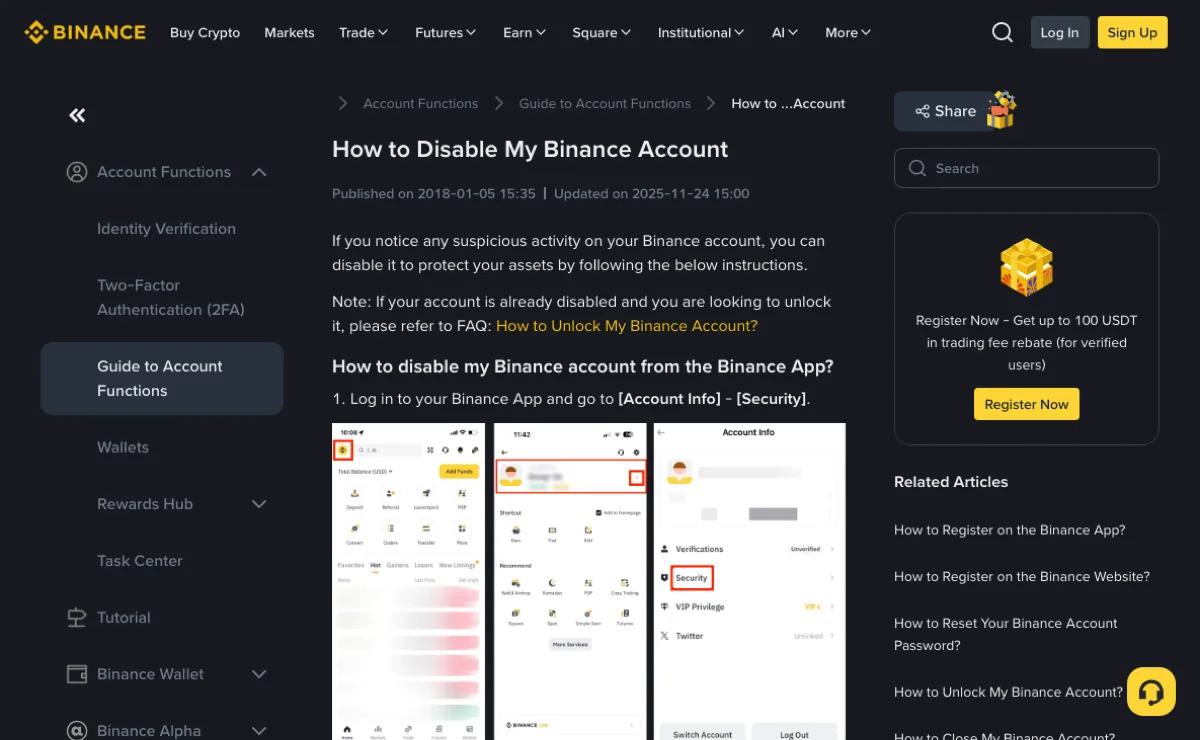
- App: go to [Account Info] - [Security], scroll down and tap [Manage Account] - [Disable Account], read the notes, tap [Disable Account], then complete the security verification.
- Website: click the profile icon, then [Account]; choose [Security] in the side menu, scroll down to Account Management - Disable Account and click [Disable]; read the notes, click [Disable Account] and complete the security verification.
Disabling removes your API keys. Once the account is back, any tool that relied on those keys has to be set up again: create new keys only for tools you still trust and still need, give them only the permissions they need, and check whether the old keys were used for anything you did not do.
Unlocking starts at login. According to the unlock article linked in the table, a pop-up appears when you sign in; you select [Unlock] and complete the security verification, and the steps asked of you can vary with the account's status. There are three outcomes: the unlock succeeds; the request goes under review and the result is sent by email; or it fails, in which case you try again or contact support. Even after a successful unlock, allow up to 48 hours before you can withdraw or make P2P transactions. Those 48 hours run from the unlock, not from when you asked for it, and the article gives no fixed time for the review stage.
If unfamiliar logins appear again afterwards
Keep an eye on security notifications, the activity log and the device list for a while. If another line turns up that you cannot explain, add its time and details to the support ticket you already opened rather than starting a new one, and go back over the email account, phone number, verification methods, devices and API keys. A second unexplained login does not tell you which of those was the way in.
This is also a good moment to go through every security setting at once; the account security checklist covers what to switch on and where. If by the time you noticed you could no longer log in at all, that is a different path — see the safe recovery steps for a locked-out login.
Keep the time of the incident, the steps you took and the support ticket number together in one place, so that any later messages from Binance can be matched against the same ticket.